

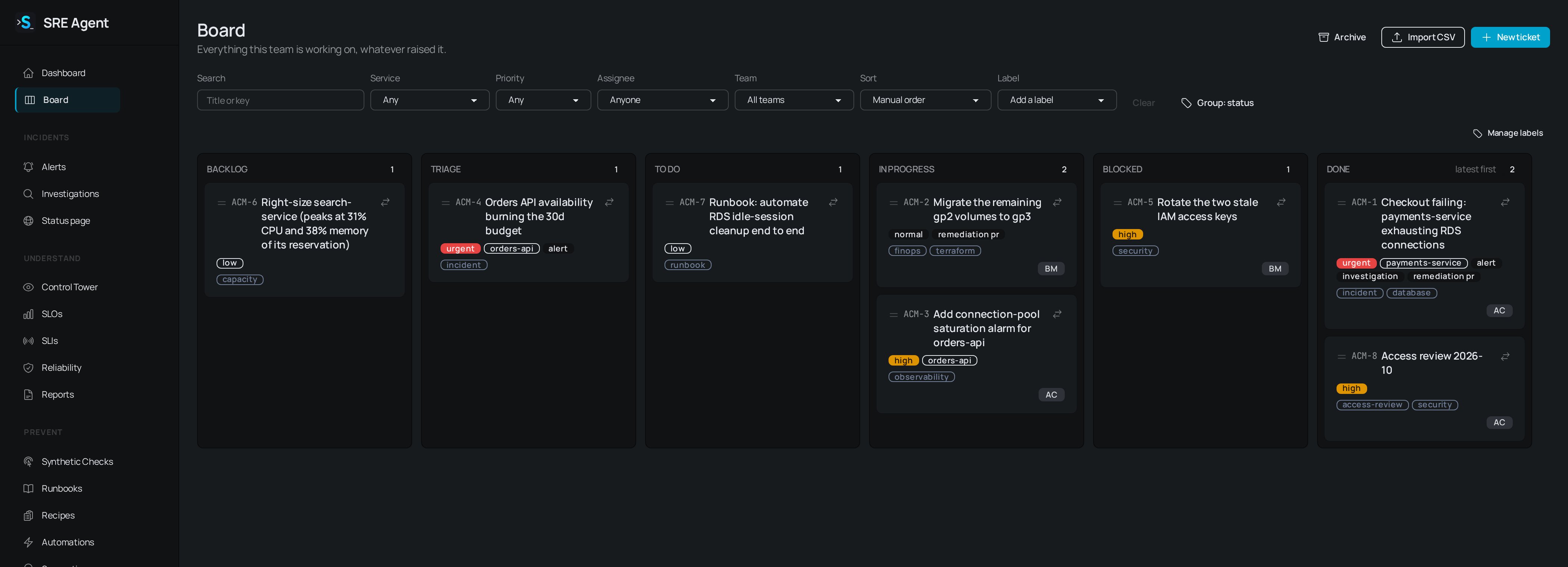
The board shows work in six columns from Backlog to Done, with filters across the top.
Open the board and create a card
1
Open Board
Go to Board in the sidebar. Cards sit in six columns: Backlog, Triage, To do,
In progress, Blocked and Done. Drag a card to move it, or use the move menu on the
card to send it to another column or up and down within one.
2
Click New ticket
Fill in Title, an optional Description (Markdown is fine), and the Column,
Priority (urgent, high, normal or low), Service, Labels, Team and Due date.
3
Create it
Click Create card. If you use a ticket integration, a final choice lets you also file the
card there.
/sre-ticket in Slack, the Create board ticket Slack message action, and the webhook (see Webhook and tracker sync) all open cards. Cards from /sre-ticket and the webhook land in Triage. Click a card to open its page, with its description, details, assignees, conversation, activity and related alerts and investigations. Type @ in a comment to name a colleague, who is told once by Slack message or email depending on their account settings.
Done cards are filed in the archive automatically after a while without changes. Click Archive at the top of the board to see archived cards, and Board to go back.
Card keys
Every card has a short key such asOPS-12: your organization’s prefix and the card’s number. It appears on the card, in Slack and in email subjects, opens the card at /b/<org-slug>/tickets/OPS-12, and works in the board search box.
An organization admin can change the prefix under Settings, Preferences, Prefix (2 to 6 uppercase letters or digits, starting with a letter). Old keys then stop resolving for people and scripts that stored them.
Filter, sort and save views
The filter bar combines these controls:- Search matches a title or a key.
- Service, Priority, Assignee (Anyone, Me, Unassigned or a member) and, if you use teams, Team.
- Label adds label filters. Several labels mean cards that carry all of them. Click a label chip to remove it.
- Sort offers Manual order, Recently updated, Least recently updated, Newest, Priority and Due date. While a sort is chosen you can still drag a card to another column, but rearranging within a column waits until you return to manual order.
- Clear removes the filters and keeps your sort.
- Group: status and Group: label switch the columns between workflow status and label.
Reminders
Any open card can carry reminders, which are handy for one stuck in Blocked. On the card, under Reminders, pick In 1 day, In 1 week or On a date and time…, choose Remind me or Remind everyone on the card, add an optional one-line note and click Set reminder. The date is read in your organization’s timezone. The reminder names the card, its column, how long it has sat there and who set it. Remind everyone is worked out when the reminder fires, so people added since are included. Moving a card to Done or archiving it cancels its reminders. The person who set a reminder, or an admin, can Cancel it earlier.Import a CSV
An organization admin can bring cards in from a spreadsheet export.1
Click Import CSV
The button is at the top of one organization’s board. Choose your CSV file: up to 500 rows
and 1 MB, with the first row as the header. Click Read the file.
2
Map the columns
Each column shows a guess at what it is and its first value. Change Import as for any column
to Title, Description, Status, Priority, Service, Labels, Assignee
emails, Due date, Description (extra) or Ignore. A column the guess does not
recognize is appended to the card’s description rather than dropped.
3
Import
Click Import N rows. The report accounts for every row by number as imported, skipped as a
duplicate (an open card with the same title already exists) or dropped (no title).
03/04/2026 is left off rather than guessed. Each of these appears in the report.
Link pull requests to cards
Name the card in a pull request (OPS-12 in the title, body or branch name, such as ops-12-fix-retries) and the card shows the pull request and its state, one activity line per change, with a comment on the pull request naming the card. This needs the GitHub App on the repository. For an older pull request, paste its URL under Link a pull request on the card.
Related
- Triage alerts: create a card from an alert.
- Run and read an investigation: create a card from an investigation.
- Use the Control Tower: findings that open cards on their own.
- Plan matrix: which plans sync cards with a tracker.