

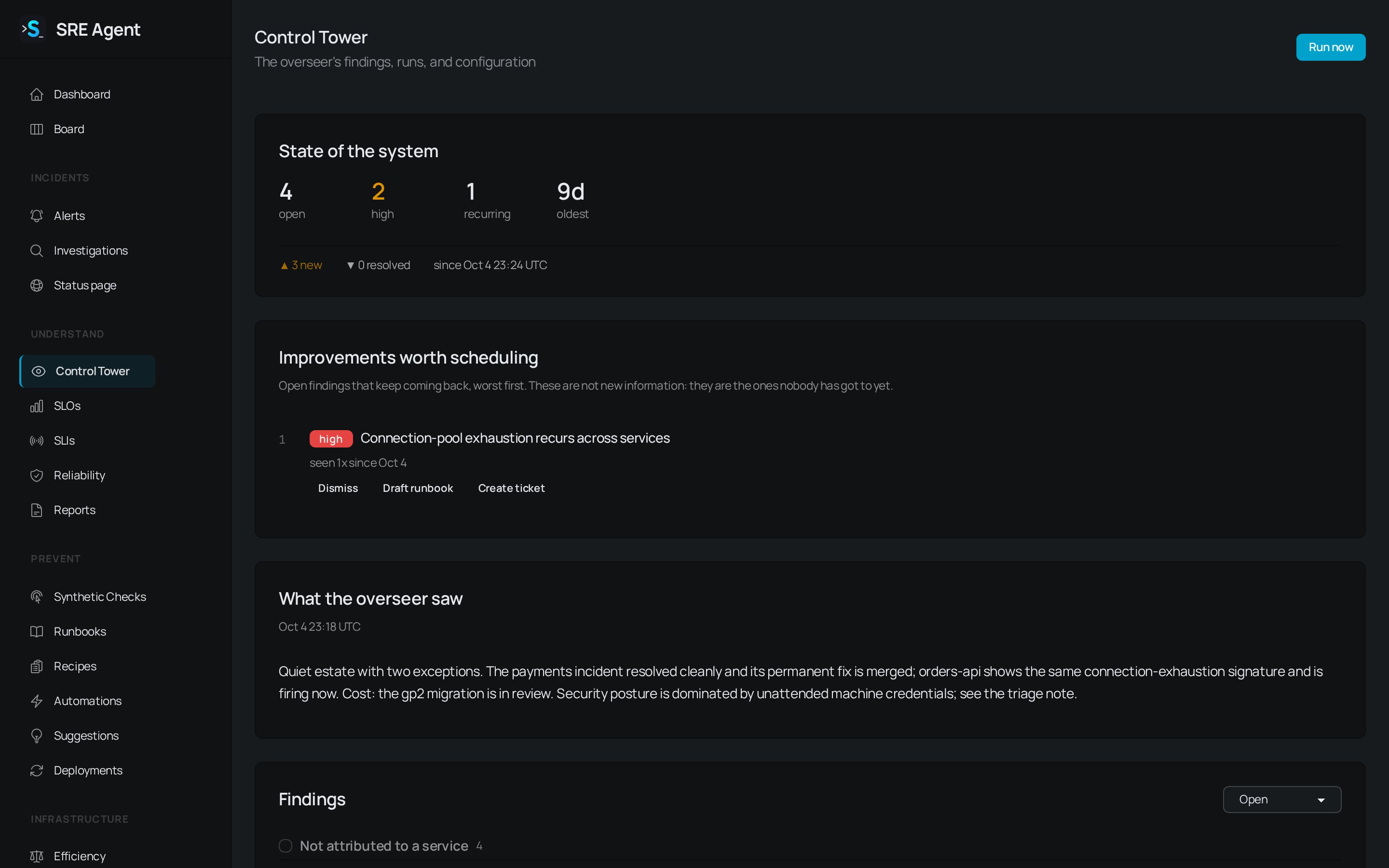
The Control Tower page opens with the state of the system, improvements worth scheduling and what the overseer saw.
Turn it on
1
Open the Control Tower
Click Control Tower in the sidebar. Until it is enabled, the page says “The overseer is off.”
2
Open Settings
Scroll to the Settings card. Organization admins see it, and members can read findings and act on them.
3
Choose how it runs
Tick Enabled. Pick a Cadence (daily or weekly) and an Aggressivity:
Max tokens / run caps how much AI work one run can use.
4
Choose what it tells you
Send a digest after each run posts a short Slack report. Open a ticket for each critical finding is on by default. Click Save.
5
Run it once
An organization admin can click Run now at the top of the page. The first scheduled run follows your cadence.
The morning brief
After each run, the page shows what the Control Tower found:- State of the system counts findings that are open, critical, high, recurring and ready to act on, with the age of the oldest. A line underneath shows how many are new and how many resolved since the last run.
- Improvements worth scheduling lists open findings that keep coming back, worst first. These are the ones nobody has got to yet.
- What the overseer saw is the run’s written brief, with the time of the run.
Work through findings
The Findings card lists them grouped by service, worst group first, with a Not attributed to a service group at the end. Each finding shows its kind, severity, how many times it was seen and the Control Tower’s confidence. Use the filter to switch between Open, Dismissed, Actioned, Auto actioned and Resolved. Links such as Open Efficiency → or Open synthetics → take you to the page where the finding can be fixed. Each open finding offers some of these buttons:
Once a finding has been acted on, it shows what was done and who did it. To handle a batch, tick the boxes on the left, or the box at the top of a service group, and click Dismiss selected.
Apply a finding as a pull request
Click Create fix PR on a finding. SRE Agent reads the repository mapped to that service and prepares a pull request, with the finding as the brief. The page says it is analyzing the request, and the outcome appears here and in Slack. Pull requests are never merged for you. Review and merge them yourself. The Remediation PRs card lists recent pull requests and their state. Click one to open a drawer with the agent’s reasoning, the request it was given and the files it touched. If a pull request is blocked, the drawer explains why. Fix pull requests need the GitHub App connected for the repository, and are part of the Business plan.Dismiss a finding
Click Dismiss, enter a reason in Why?, and click Dismiss. The reason is optional, but the next person who sees the same problem will want it, for example “expected during the migration”. A dismissed finding is not raised again. Find it later by setting the filter to Dismissed.More
Critical findings open a ticket on your ops board by default, and organizations with several workspaces get a merged findings view. Both are covered in Control Tower details.Related
- Write and run runbooks: the runbook a finding can start.
- Request a fix as a pull request: how a fix pull request is made.
- Track work on the ops board: where critical findings land as tickets.
- Plan matrix: which plans include the Control Tower.