

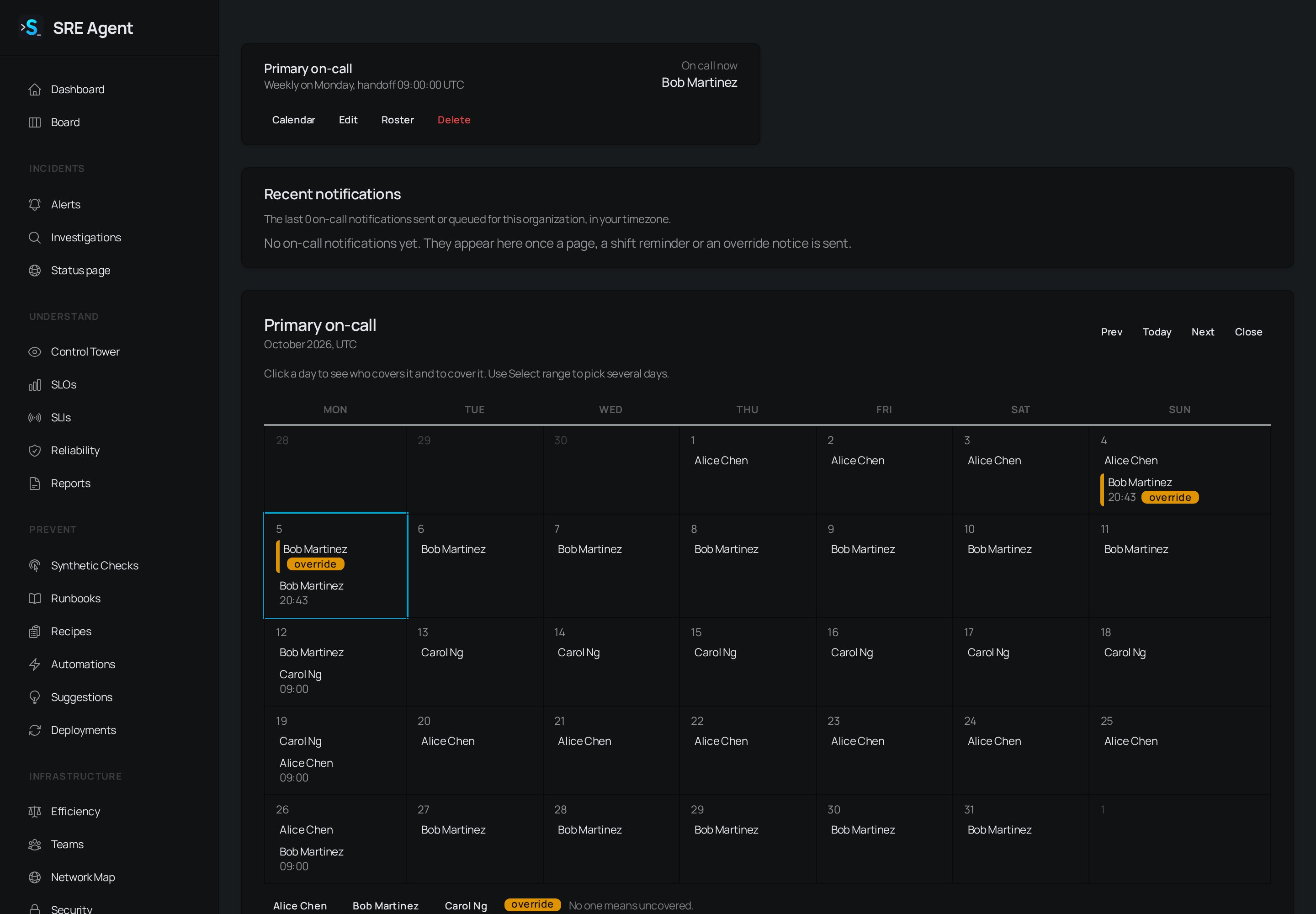
The On-call page shows the rotation and who is on call now. The calendar below it marks overrides, and Recent notifications stay empty until a page, shift reminder or override notice is sent.
Create a schedule and its rotation
1
Add the schedule
Go to On-call and click New schedule. Fill in Name, Timezone (IANA) such as
America/New_York, and Rotation: Daily, Weekly or Custom (then Days per
rotation). A weekly rotation also takes a Handoff weekday.2
Set the handoff
Enter the Handoff time (local, 24h HH:MM) and Starts on (YYYY-MM-DD). Nobody is on call
before the start date. Leave Enabled ticked and click Save.
3
Build the roster
On the schedule’s card click Roster. Click
+ email to add members, use the arrows to set
the order (the first person takes the first shift), then click Save roster.What you see
Each schedule card shows On call now. The answer is worked out each time from the roster, the rotation and any overrides, so an edit takes effect immediately. Handoffs happen at the local time in the schedule’s own timezone, so a daylight saving change makes a shift 23 or 25 hours instead of silently drifting. A member who leaves the organization or is disabled is skipped when their shift comes up, and the next person on the roster takes it.Cover a shift
An override puts someone else on call for a window, for example “Ana covers for Ben from Friday 18:00 to Monday 09:00”.1
Open the calendar
Click Calendar on the schedule’s card. Use Prev, Today and Next to change month.
2
Pick the days
Click a day. A panel lists every shift on it with exact start and end times, who holds it, and
whether it comes from the rotation or an override. To cover several days, click Select
range, then click the last day.
3
Cover them
Click Cover these days. The form opens prefilled from the first handoff to the handoff after
your last day. Fill in Who covers, adjust Starts and Ends (
YYYY-MM-DDTHH:MM, in
the schedule’s timezone) and add Reason (optional). The form shows what the override
replaces before you save. Click Save override.Send pages to the person on call
On-call does nothing by itself until an alert reaches the schedule.- Go to Settings, Outbound Alerting and click Add Config. Set Provider Type to On-call schedule and choose the schedule under On-call schedule.
- Click Add Rule to say which alerts page it: match on source, severity or labels, and set Escalate after (minutes) to wait before paging or leave it empty to page at once.
- To mention the person on call in the Slack thread of a service’s alerts, set Mention on call (optional) on that service’s route under Settings, Notifications, Per-Service Alert Channels.
Related
- Triage alerts: the alerts that page the person on call.
- Work incidents from Slack: mention the person on call in alert threads.
- Connect PagerDuty: page PagerDuty as well or instead.