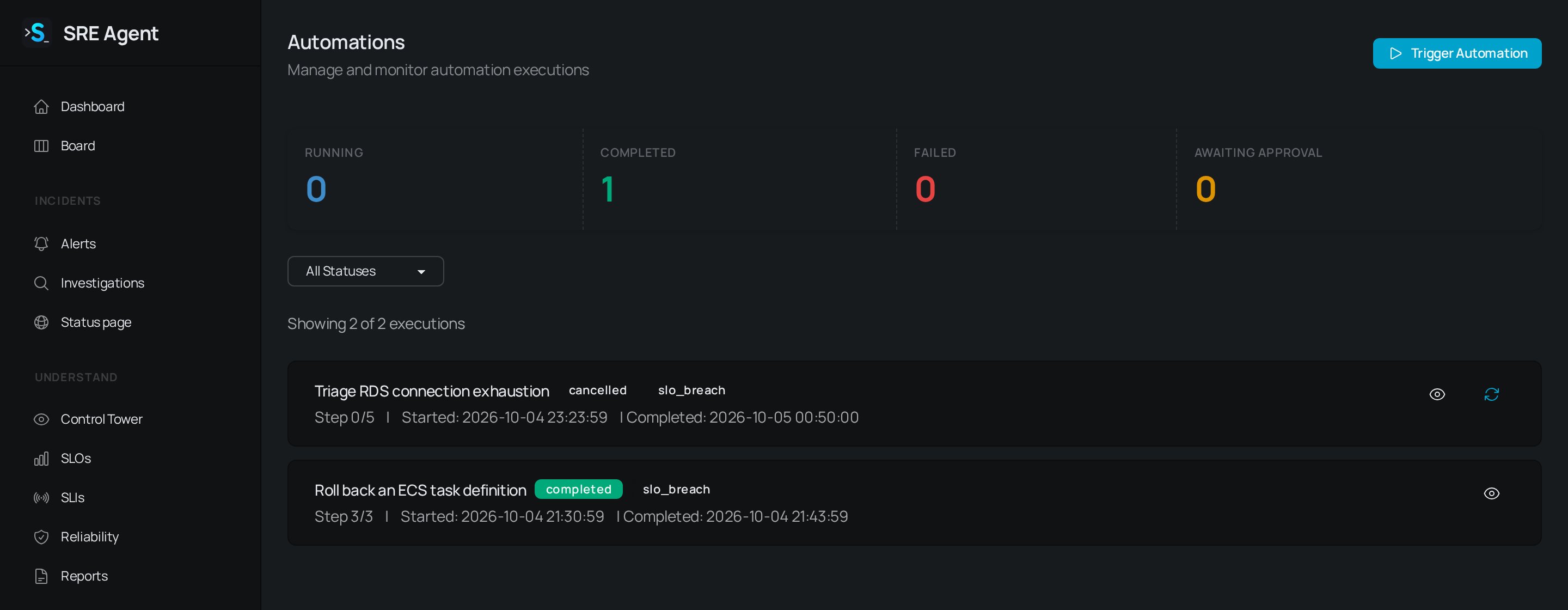
The Automations page shows run counts and the history of runs, including one waiting for approval.
Wire an alert to a runbook
1
Pick the trigger
Open the runbook with Edit and choose a Trigger Type:
alert_pattern for alerts
matching the patterns on the runbook, alert_severity for any critical or high alert, or
slo_breach for SLO breach alerts. Use scheduled for a cron schedule.2
Allow automatic runs
Tick Run automatically when a matching alert fires. Without it, a matching alert does not
start a run. Click Save Runbook.
3
Choose who approves
Under Who approves, pick how much a person is involved. Nobody runs unattended. A
person, once pauses before the first step. A person at each risky step pauses only at
high-risk steps and at writes over more than one item.
4
Rehearse and approve
Click Dry run on the runbook and read the result, then click Approve. An unapproved
runbook never starts on an alert.
sli_service) and whether it is a fast or a slow burn. A runbook with slo_breach as its trigger can target the service that is burning without naming it anywhere in the steps.
Start a run by hand
Go to Automations and click Trigger Automation. Choose an approved runbook (each shows its step count, risk and approval mode) and click Execute. Members and admins can trigger runs.Read the run history
Automations lists every run, whatever started it, with counts for Running, Completed, Failed and Awaiting Approval. Use the status filter to narrow it to Pending, Awaiting Approval, Running, Completed, Failed, Rolled Back or Cancelled. Each row shows the runbook, status, what triggered it, the current step out of the total, and start and finish times. A failed run shows the start of its error message. Click a run to open it:- Triggered By, Progress, Started, and Approved by with the time, once someone approves.
- Writes dispatched, the number of changes the run made.
- Execution Steps, a timeline with each step’s status, duration, approver and the command it ran. The document icon opens the step’s output, error and rollback output.
- View Alert, View Investigation and View Runbook links to what the run relates to.
Approve, reject and control a run
When a run waits for you, its status is Awaiting Approval and a notification posts to Slack whatever the runbook’s notification level.- Approve on the run starts it. You confirm first, because it acts on your infrastructure.
- On a step waiting for approval, Approve runs that step and Reject stops it.
- Cancel stops a pending, running or waiting run.
- Rollback runs each step’s rollback action on a running or failed run.
- Retry starts a new run of a failed, rolled-back or cancelled one. A retry is refused if the runbook is no longer approved.
- Resume continues a failed or rolled-back run from the step that failed.
input shows User Input Required with the fields the runbook defined. Fill them in and click Submit to let the run continue.
If the same issue triggers a runbook again while a run is waiting for approval, the new trigger is not queued separately. The waiting run shows +N repeats, and a banner on it tells you the issue is still happening.
Members and admins can approve and control runs. Approving a runbook, which makes it eligible to
run, needs an organization admin. The runs themselves record who approved them.
Pause automatic runs
Click Pause on an approved runbook (on the runbook page or the Runbooks list) to stop its scheduled and alert-triggered runs until you click Resume. Use it during maintenance, or while you investigate a runbook that is misbehaving.Related
- Triage alerts: the alerts that start runs.
- Work incidents from Slack: approval requests post to Slack.
- Manage people and roles: who can approve a runbook and a run.