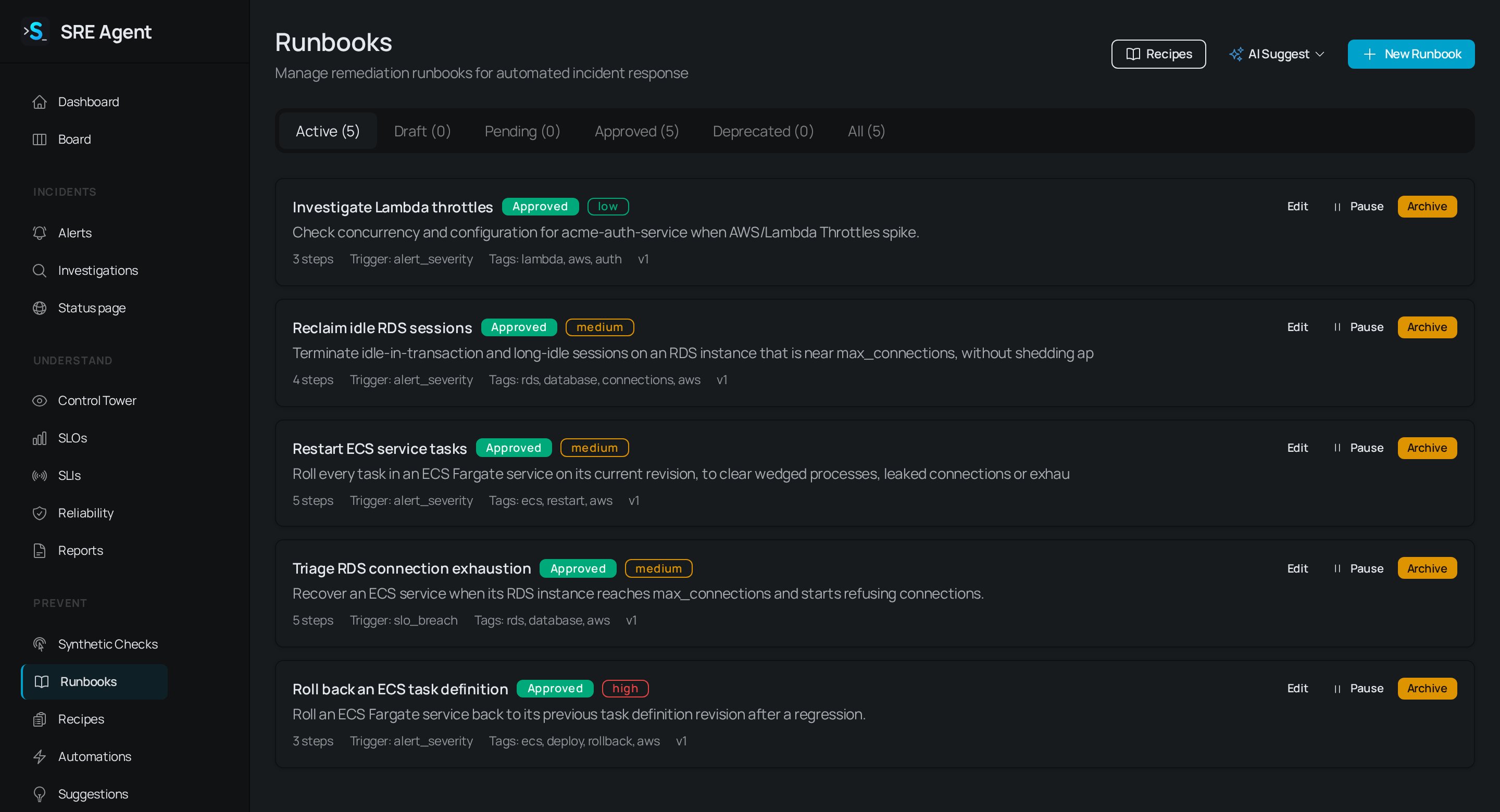
The Runbooks page lists runbooks by state, with their risk level, step count, trigger and tags.
Start from a recipe
A recipe is a runbook template whose steps are generated from a few parameters.1
Open Recipes
Click Recipes in the sidebar. Use the category tabs to narrow the list, then click
Configure on a recipe.
2
Fill in the parameters
The page lists the recipe’s steps and a Configuration form. Checks above the form warn you
if the recipe needs a connector or data source you do not have. With several connectors of the
type the recipe uses, Run across lets you pick one connector or every enabled connector, one
run each.
3
Install it
Click Install runbook. If you change the recipe’s approval mode, schedule or connector scope
and you cannot approve runbooks, it installs as a draft for an admin to sign off.
Build a runbook yourself
1
Create the runbook
On Runbooks, click New Runbook, or use AI Suggest to draft one From Recent
Alerts, From Investigations or From SLO Breaches. Enter a Name, a Risk Level
and a Description, and click Save Runbook.
2
Choose when it runs
Pick a Trigger Type (see below). For
scheduled, enter a Schedule (cron expression)
such as 0 2 * * *. Tick Run automatically when a matching alert fires to start
alert-triggered runs without a click.3
Choose who approves a run
Under Who approves, pick Nobody, A person, once or A person at each risky step.
4
Add steps
Open the runbook with Edit and click Add Step. Under Start from an action, pick an
action, or fill in the form. Set the Step Type:
command changes something, check reads
something, condition decides whether the next step runs, approval_gate pauses for a person,
and input asks a person for values. For command and check, set the Target Type (the
kind of system, such as kubernetes or aws_ecs), the Connector, and the action’s fields.
Tick High Risk on a step that should stop for approval.5
Validate
Click Validate. It checks that every step could run (connectors, actions, templates and
permissions) without changing anything.
6
Dry run, then approve
Click Dry run, read the result, then ask an admin to click Approve.
Pick identifiers with Scan
Fields that name AWS infrastructure (cluster, service, task_arn, function_name, instance_id, volume_id, asg_name, log_group) have a Scan button. It lists what your account actually has, using the step’s own connector, so you choose from a list. service and task_arn need a cluster first, so Scan stays disabled until the cluster field has a value.
- “Nothing found” is a real answer about your account. A role that cannot list says so and names the IAM action it is missing.
- You can always type the value. After a scan, Type it manually switches back to a text box.
Dry run and approval
A dry run is not a simulation. It runs every read step for real against your connectors, stops at the first write, and shows what that step would have dispatched. It is the only way to run a draft, which is why you can rehearse before anyone approves. Editing an approved runbook’s steps, triggers or approval settings sends it back to pending approval. Changing only its name, description, tags or risk level does not. Pause and Resume stop and restart its scheduled and alert-triggered runs.
An
approval_gate step pauses in every mode.
Triggers
Only an approved runbook runs.
To start a run by hand, open Automations, click Trigger Automation, choose the runbook and click Execute. See Automations for approving and reading runs.
Runs can post to Slack at the level you choose under Notifications on the runbook. Approval requests always post.
Related
- Use the Control Tower: draft a runbook from a finding.
- Triage alerts: the alerts that trigger a runbook.
- Limits: runbook and fan-out limits.
- Troubleshooting: why a runbook step is refused.