> ## Documentation Index
> Fetch the complete documentation index at: https://docs.sreagent.app/llms.txt
> Use this file to discover all available pages before exploring further.
# Track work on the ops board
> Use the ops board to keep incident work visible: create cards, filter and save views, set reminders and import a CSV.
export const Plan = ({tier}) => {tier} plan;
The ops board holds every piece of work your organization is doing, whatever raised it: an alert, an investigation, a Control Tower finding, Slack, a webhook, or a person typing.
To post cards from a script or sync them with Jira, Zoho Sprints or GitHub, see [Webhook and tracker sync](/guides/respond/ops-board-integrations).
 ## Open the board and create a card
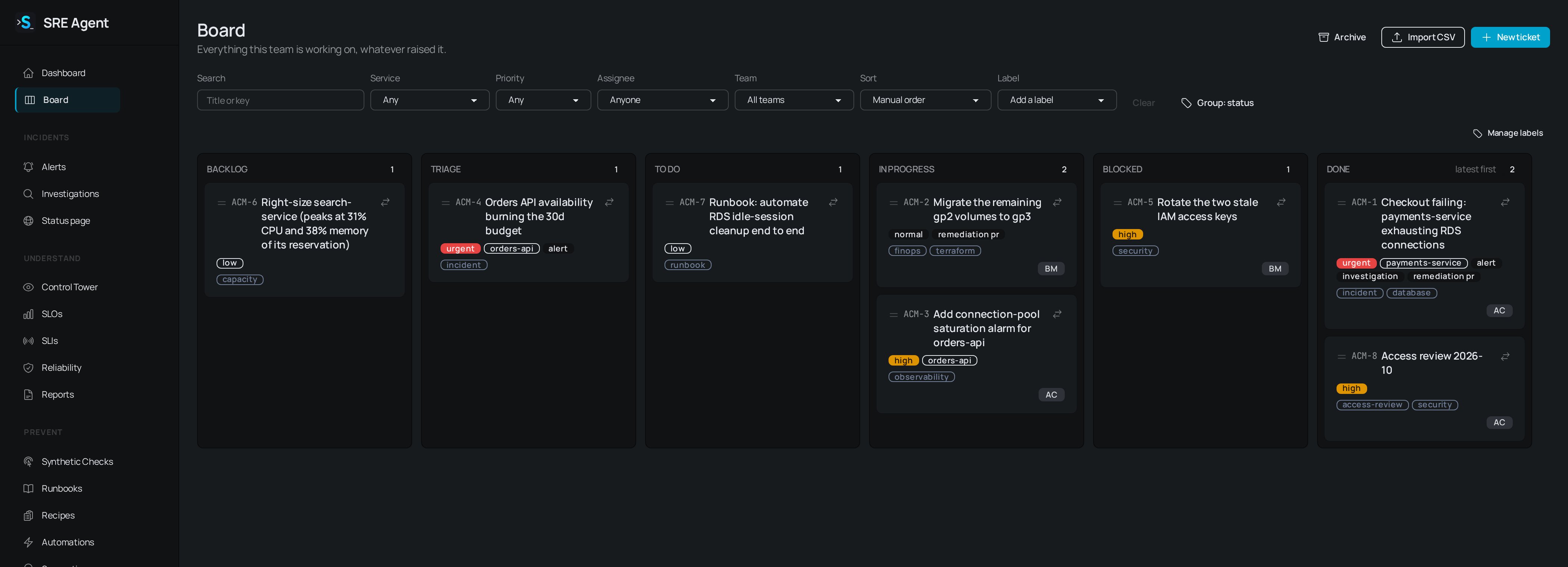
Go to **Board** in the sidebar. Cards sit in six columns: **Backlog**, **Triage**, **To do**,
**In progress**, **Blocked** and **Done**. Drag a card to move it, or use the move menu on the
card to send it to another column or up and down within one.
Fill in **Title**, an optional **Description** (Markdown is fine), and the **Column**,
**Priority** (urgent, high, normal or low), **Service**, **Labels**, **Team** and **Due date**.
Click **Create card**. If you use a ticket integration, a final choice lets you also file the
card there.
Cards also arrive on their own. **Create ticket** on an alert or investigation, `/sre-ticket` in Slack, the **Create board ticket** Slack message action, and the webhook (see [Webhook and tracker sync](/guides/respond/ops-board-integrations)) all open cards. Cards from `/sre-ticket` and the webhook land in **Triage**. Click a card to open its page, with its description, details, assignees, conversation, activity and related alerts and investigations. Type `@` in a comment to name a colleague, who is told once by Slack message or email depending on their account settings.
Done cards are filed in the archive automatically after a while without changes. Click **Archive** at the top of the board to see archived cards, and **Board** to go back.
## Card keys
Every card has a short key such as `OPS-12`: your organization's prefix and the card's number. It appears on the card, in Slack and in email subjects, opens the card at `/b//tickets/OPS-12`, and works in the board search box.
An organization admin can change the prefix under **Settings**, **Preferences**, **Prefix** (2 to 6 uppercase letters or digits, starting with a letter). Old keys then stop resolving for people and scripts that stored them.
## Filter, sort and save views
The filter bar combines these controls:
* **Search** matches a title or a key.
* **Service**, **Priority**, **Assignee** (**Anyone**, **Me**, **Unassigned** or a member) and, if you use teams, **Team**.
* **Label** adds label filters. Several labels mean cards that carry all of them. Click a label chip to remove it.
* **Sort** offers **Manual order**, **Recently updated**, **Least recently updated**, **Newest**, **Priority** and **Due date**. While a sort is chosen you can still drag a card to another column, but rearranging within a column waits until you return to manual order.
* **Clear** removes the filters and keeps your sort.
* **Group: status** and **Group: label** switch the columns between workflow status and label.
To save a combination, click **Save view**, name it and click **Save**. Views are personal. Click the star beside a view so the board opens with it whenever you open the board without filters.
## Reminders
Any open card can carry reminders, which are handy for one stuck in **Blocked**. On the card, under **Reminders**, pick **In 1 day**, **In 1 week** or **On a date and time...**, choose **Remind me** or **Remind everyone on the card**, add an optional one-line note and click **Set reminder**. The date is read in your organization's timezone.
The reminder names the card, its column, how long it has sat there and who set it. **Remind everyone** is worked out when the reminder fires, so people added since are included. Moving a card to **Done** or archiving it cancels its reminders. The person who set a reminder, or an admin, can **Cancel** it earlier.
## Import a CSV
An organization admin can bring cards in from a spreadsheet export.
The button is at the top of one organization's board. Choose your **CSV file**: up to 500 rows
and 1 MB, with the first row as the header. Click **Read the file**.
Each column shows a guess at what it is and its first value. Change **Import as** for any column
to **Title**, **Description**, **Status**, **Priority**, **Service**, **Labels**, **Assignee
emails**, **Due date**, **Description (extra)** or **Ignore**. A column the guess does not
recognize is appended to the card's description rather than dropped.
Click **Import N rows**. The report accounts for every row by number as imported, skipped as a
duplicate (an open card with the same title already exists) or dropped (no title).
A status or priority the board does not use takes the default. An assignee email that is not a member is left off, and an ambiguous date such as `03/04/2026` is left off rather than guessed. Each of these appears in the report.
## Link pull requests to cards
Name the card in a pull request (`OPS-12` in the title, body or branch name, such as `ops-12-fix-retries`) and the card shows the pull request and its state, one activity line per change, with a comment on the pull request naming the card. This needs the GitHub App on the repository. For an older pull request, paste its URL under **Link a pull request** on the card.
## Related
* [Triage alerts](/guides/respond/alerts): create a card from an alert.
* [Run and read an investigation](/guides/respond/investigations): create a card from an investigation.
* [Use the Control Tower](/guides/prevent/control-tower): findings that open cards on their own.
* [Plan matrix](/guides/reference/plan-matrix): which plans sync cards with a tracker.
This documentation is built and hosted on [Mintlify](https://mintlify.com), a developer documentation platform.
## Open the board and create a card
Go to **Board** in the sidebar. Cards sit in six columns: **Backlog**, **Triage**, **To do**,
**In progress**, **Blocked** and **Done**. Drag a card to move it, or use the move menu on the
card to send it to another column or up and down within one.
Fill in **Title**, an optional **Description** (Markdown is fine), and the **Column**,
**Priority** (urgent, high, normal or low), **Service**, **Labels**, **Team** and **Due date**.
Click **Create card**. If you use a ticket integration, a final choice lets you also file the
card there.
Cards also arrive on their own. **Create ticket** on an alert or investigation, `/sre-ticket` in Slack, the **Create board ticket** Slack message action, and the webhook (see [Webhook and tracker sync](/guides/respond/ops-board-integrations)) all open cards. Cards from `/sre-ticket` and the webhook land in **Triage**. Click a card to open its page, with its description, details, assignees, conversation, activity and related alerts and investigations. Type `@` in a comment to name a colleague, who is told once by Slack message or email depending on their account settings.
Done cards are filed in the archive automatically after a while without changes. Click **Archive** at the top of the board to see archived cards, and **Board** to go back.
## Card keys
Every card has a short key such as `OPS-12`: your organization's prefix and the card's number. It appears on the card, in Slack and in email subjects, opens the card at `/b//tickets/OPS-12`, and works in the board search box.
An organization admin can change the prefix under **Settings**, **Preferences**, **Prefix** (2 to 6 uppercase letters or digits, starting with a letter). Old keys then stop resolving for people and scripts that stored them.
## Filter, sort and save views
The filter bar combines these controls:
* **Search** matches a title or a key.
* **Service**, **Priority**, **Assignee** (**Anyone**, **Me**, **Unassigned** or a member) and, if you use teams, **Team**.
* **Label** adds label filters. Several labels mean cards that carry all of them. Click a label chip to remove it.
* **Sort** offers **Manual order**, **Recently updated**, **Least recently updated**, **Newest**, **Priority** and **Due date**. While a sort is chosen you can still drag a card to another column, but rearranging within a column waits until you return to manual order.
* **Clear** removes the filters and keeps your sort.
* **Group: status** and **Group: label** switch the columns between workflow status and label.
To save a combination, click **Save view**, name it and click **Save**. Views are personal. Click the star beside a view so the board opens with it whenever you open the board without filters.
## Reminders
Any open card can carry reminders, which are handy for one stuck in **Blocked**. On the card, under **Reminders**, pick **In 1 day**, **In 1 week** or **On a date and time...**, choose **Remind me** or **Remind everyone on the card**, add an optional one-line note and click **Set reminder**. The date is read in your organization's timezone.
The reminder names the card, its column, how long it has sat there and who set it. **Remind everyone** is worked out when the reminder fires, so people added since are included. Moving a card to **Done** or archiving it cancels its reminders. The person who set a reminder, or an admin, can **Cancel** it earlier.
## Import a CSV
An organization admin can bring cards in from a spreadsheet export.
The button is at the top of one organization's board. Choose your **CSV file**: up to 500 rows
and 1 MB, with the first row as the header. Click **Read the file**.
Each column shows a guess at what it is and its first value. Change **Import as** for any column
to **Title**, **Description**, **Status**, **Priority**, **Service**, **Labels**, **Assignee
emails**, **Due date**, **Description (extra)** or **Ignore**. A column the guess does not
recognize is appended to the card's description rather than dropped.
Click **Import N rows**. The report accounts for every row by number as imported, skipped as a
duplicate (an open card with the same title already exists) or dropped (no title).
A status or priority the board does not use takes the default. An assignee email that is not a member is left off, and an ambiguous date such as `03/04/2026` is left off rather than guessed. Each of these appears in the report.
## Link pull requests to cards
Name the card in a pull request (`OPS-12` in the title, body or branch name, such as `ops-12-fix-retries`) and the card shows the pull request and its state, one activity line per change, with a comment on the pull request naming the card. This needs the GitHub App on the repository. For an older pull request, paste its URL under **Link a pull request** on the card.
## Related
* [Triage alerts](/guides/respond/alerts): create a card from an alert.
* [Run and read an investigation](/guides/respond/investigations): create a card from an investigation.
* [Use the Control Tower](/guides/prevent/control-tower): findings that open cards on their own.
* [Plan matrix](/guides/reference/plan-matrix): which plans sync cards with a tracker.
This documentation is built and hosted on [Mintlify](https://mintlify.com), a developer documentation platform.