> ## Documentation Index
> Fetch the complete documentation index at: https://docs.sreagent.app/llms.txt
> Use this file to discover all available pages before exploring further.
# Triage alerts
> Read, filter, acknowledge, mute and resolve the alerts your monitoring tools send to SRE Agent.
export const Plan = ({tier}) => {tier} plan;
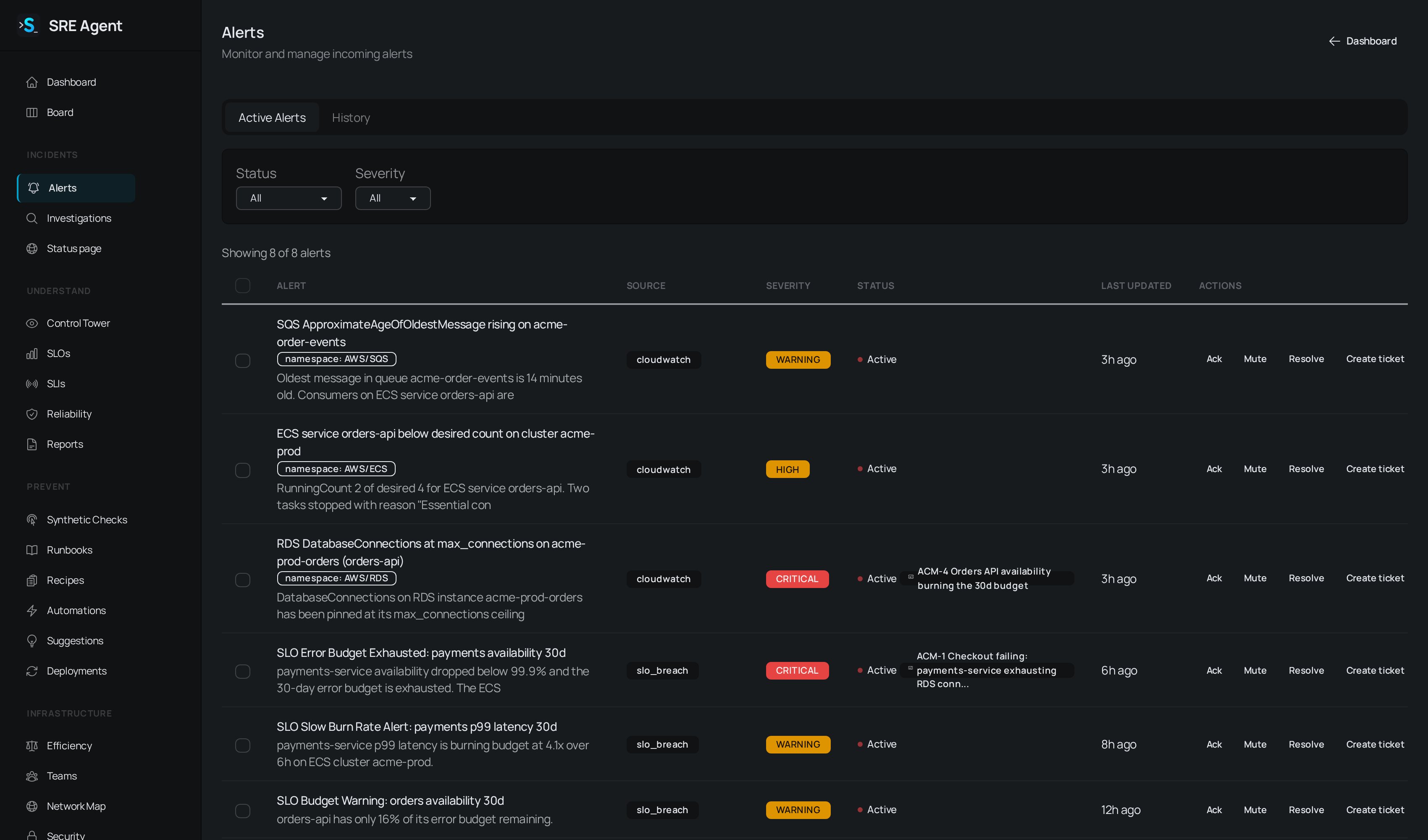
Every alert from your monitoring tools lands on one page. You decide what to do with it: acknowledge it, silence it, resolve it, investigate it or hand it to someone else.
 ## Where alerts come from
Each organization has its own webhook token. Point your tools at the URLs shown under **Integrations**, **Webhooks** (each one embeds the token, so treat it like a password).
| Source | URL pattern |
| - | - |
| Grafana | `https://sreagent.app/webhooks/grafana/` |
| PagerDuty | `https://sreagent.app/webhooks/pagerduty/` |
| Datadog | `https://sreagent.app/webhooks/datadog/` |
| New Relic | `https://sreagent.app/webhooks/newrelic/` |
| CloudWatch | `https://sreagent.app/webhooks/cloudwatch/` |
| CloudTrail | `https://sreagent.app/webhooks/cloudtrail/` |
You can also create an alert yourself with `/sre-alert ` in Slack, or post one through the public API. SLO breaches, synthetic checks and certificate monitors raise alerts of their own. Every alert gets the same treatment, whatever its source: it is deduplicated, checked against your mutes, recorded on its own timeline and offered to your outbound alerting rules.
## Triage an alert
<Steps>
<Step title="Open the alert list">
Go to **Alerts**. **Active Alerts** shows what needs attention and **History** shows everything
else. Each row shows the title, source, severity, status and when it last changed.
</Step>
<Step title="Filter the list">
Use the **Status** filter (Active, Acknowledged, Muted, Resolved) and the **Severity** filter
(Critical, High, Warning, Medium, Low). **Clear filters** resets both.
</Step>
<Step title="Open the alert">
Click a row. The alert opens with its resource tags, description and labels, any related
deployments, and an **Activity** timeline of every fire, acknowledgement and resolve.
</Step>
<Step title="Act on it">
Use the row buttons or the same buttons inside the alert, listed in the table below.
</Step>
</Steps>
| Button | What it does |
| - | - |
| **Ack** | Claims the alert so the team knows someone is on it. |
| **Mute** | Silences the alert without saying it is fixed. **Unmute** starts paging on it again. |
| **Resolve** | Marks the condition over. You confirm first, and the alert drops out of the active list. |
| **Create ticket** | Opens an ops board card from the alert and its latest investigations. |
| **Page via** (target name) | Pages that target. See [Connect PagerDuty](/guides/respond/pagerduty). |
To act on many alerts at once, tick the boxes on the left of the rows and use the **Acknowledge**, **Resolve** or **Mute** buttons that appear above the table. Starting an investigation and paging stay per alert on purpose.
Members and admins can acknowledge, mute and resolve. Viewers can read.
<Note>
When several alerts arrive together, an **Alert storm** banner shows how many were grouped and
links to the group's investigation when one exists.
</Note>
## Dedup, resolve and re-fire
An alert is identified by its fingerprint. If your tool sends the same alert again while it is still firing, SRE Agent updates the existing alert instead of creating another. A repeat of a resolved alert reopens it.
An alert resolves when you click **Resolve**, when your tool sends a recovery, or when the condition clears on its own. The resolve time is recorded in the timeline, and the Slack thread gets an "Alert Resolved" reply.
## Quiet re-fire
An alarm that clears and fires again every few minutes would otherwise page you every cycle. SRE Agent reopens it quietly instead. The alert reopens and its timeline records the re-fire, but you get one reply in the existing Slack thread (edited in place on later re-fires), no new page, and no automatic investigation.
An organization admin sets the window under **Settings**, **Preferences**, **Re-fire cooldown (minutes)**. The default is 30 minutes and the maximum is 1440. A value of 0 pages on every re-fire. Nothing is dropped either way, and the timeline shows every fire and resolve.
## The flapping badge
A rule that fires many times in a week and usually clears itself within minutes is marked **flapping**. The alert list shows a **flapping** badge you can hover for the numbers (how often it fired, how long it takes to clear, what to tune). The alert itself and its Slack message carry the same note.
A flapping alert is never muted or hidden, and it still counts. SRE Agent only stops starting an automatic investigation for each occurrence. You can still start one by hand, and a rule that fires at a higher severity leaves the flapping state on its own.
## What you see in Slack
A new alert opens a message in the channel set for its service, or for its severity when the service has no route. The message has **View Alert**, **Acknowledge**, **Improve this alert** and **Related alerts** buttons, plus **View Investigation** once one exists. See [Slack](/guides/respond/slack) for channel setup and commands.
## Related
* [Run and read an investigation](/guides/respond/investigations): let the agent find the cause.
* [Set up on-call](/guides/respond/on-call): decide who gets paged.
* [Track work on the ops board](/guides/respond/ops-board): track the follow-up work as a card.
* [Webhook endpoints](/guides/reference/webhook-endpoints): every inbound alert URL and its response codes.
This documentation is built and hosted on [Mintlify](https://mintlify.com), a developer documentation platform.
## Where alerts come from
Each organization has its own webhook token. Point your tools at the URLs shown under **Integrations**, **Webhooks** (each one embeds the token, so treat it like a password).
| Source | URL pattern |
| - | - |
| Grafana | `https://sreagent.app/webhooks/grafana/` |
| PagerDuty | `https://sreagent.app/webhooks/pagerduty/` |
| Datadog | `https://sreagent.app/webhooks/datadog/` |
| New Relic | `https://sreagent.app/webhooks/newrelic/` |
| CloudWatch | `https://sreagent.app/webhooks/cloudwatch/` |
| CloudTrail | `https://sreagent.app/webhooks/cloudtrail/` |
You can also create an alert yourself with `/sre-alert ` in Slack, or post one through the public API. SLO breaches, synthetic checks and certificate monitors raise alerts of their own. Every alert gets the same treatment, whatever its source: it is deduplicated, checked against your mutes, recorded on its own timeline and offered to your outbound alerting rules.
## Triage an alert
<Steps>
<Step title="Open the alert list">
Go to **Alerts**. **Active Alerts** shows what needs attention and **History** shows everything
else. Each row shows the title, source, severity, status and when it last changed.
</Step>
<Step title="Filter the list">
Use the **Status** filter (Active, Acknowledged, Muted, Resolved) and the **Severity** filter
(Critical, High, Warning, Medium, Low). **Clear filters** resets both.
</Step>
<Step title="Open the alert">
Click a row. The alert opens with its resource tags, description and labels, any related
deployments, and an **Activity** timeline of every fire, acknowledgement and resolve.
</Step>
<Step title="Act on it">
Use the row buttons or the same buttons inside the alert, listed in the table below.
</Step>
</Steps>
| Button | What it does |
| - | - |
| **Ack** | Claims the alert so the team knows someone is on it. |
| **Mute** | Silences the alert without saying it is fixed. **Unmute** starts paging on it again. |
| **Resolve** | Marks the condition over. You confirm first, and the alert drops out of the active list. |
| **Create ticket** | Opens an ops board card from the alert and its latest investigations. |
| **Page via** (target name) | Pages that target. See [Connect PagerDuty](/guides/respond/pagerduty). |
To act on many alerts at once, tick the boxes on the left of the rows and use the **Acknowledge**, **Resolve** or **Mute** buttons that appear above the table. Starting an investigation and paging stay per alert on purpose.
Members and admins can acknowledge, mute and resolve. Viewers can read.
<Note>
When several alerts arrive together, an **Alert storm** banner shows how many were grouped and
links to the group's investigation when one exists.
</Note>
## Dedup, resolve and re-fire
An alert is identified by its fingerprint. If your tool sends the same alert again while it is still firing, SRE Agent updates the existing alert instead of creating another. A repeat of a resolved alert reopens it.
An alert resolves when you click **Resolve**, when your tool sends a recovery, or when the condition clears on its own. The resolve time is recorded in the timeline, and the Slack thread gets an "Alert Resolved" reply.
## Quiet re-fire
An alarm that clears and fires again every few minutes would otherwise page you every cycle. SRE Agent reopens it quietly instead. The alert reopens and its timeline records the re-fire, but you get one reply in the existing Slack thread (edited in place on later re-fires), no new page, and no automatic investigation.
An organization admin sets the window under **Settings**, **Preferences**, **Re-fire cooldown (minutes)**. The default is 30 minutes and the maximum is 1440. A value of 0 pages on every re-fire. Nothing is dropped either way, and the timeline shows every fire and resolve.
## The flapping badge
A rule that fires many times in a week and usually clears itself within minutes is marked **flapping**. The alert list shows a **flapping** badge you can hover for the numbers (how often it fired, how long it takes to clear, what to tune). The alert itself and its Slack message carry the same note.
A flapping alert is never muted or hidden, and it still counts. SRE Agent only stops starting an automatic investigation for each occurrence. You can still start one by hand, and a rule that fires at a higher severity leaves the flapping state on its own.
## What you see in Slack
A new alert opens a message in the channel set for its service, or for its severity when the service has no route. The message has **View Alert**, **Acknowledge**, **Improve this alert** and **Related alerts** buttons, plus **View Investigation** once one exists. See [Slack](/guides/respond/slack) for channel setup and commands.
## Related
* [Run and read an investigation](/guides/respond/investigations): let the agent find the cause.
* [Set up on-call](/guides/respond/on-call): decide who gets paged.
* [Track work on the ops board](/guides/respond/ops-board): track the follow-up work as a card.
* [Webhook endpoints](/guides/reference/webhook-endpoints): every inbound alert URL and its response codes.
This documentation is built and hosted on [Mintlify](https://mintlify.com), a developer documentation platform.