> ## Documentation Index
> Fetch the complete documentation index at: https://docs.sreagent.app/llms.txt
> Use this file to discover all available pages before exploring further.
# Run runbooks as automations
> Wire alerts to approved runbooks, approve or reject runs, and read the history of everything that ran.
export const Plan = ({tier}) => {tier} plan;
An automation is an approved runbook running. This page covers the run side: starting runs, approving them, and reading the history. To write the runbook itself, see [Runbooks](/guides/prevent/runbooks).
 ## Wire an alert to a runbook
Open the runbook with **Edit** and choose a **Trigger Type**: `alert_pattern` for alerts
matching the patterns on the runbook, `alert_severity` for any critical or high alert, or
`slo_breach` for SLO breach alerts. Use `scheduled` for a cron schedule.
Tick **Run automatically when a matching alert fires**. Without it, a matching alert does not
start a run. Click **Save Runbook**.
Under **Who approves**, pick how much a person is involved. **Nobody** runs unattended. **A
person, once** pauses before the first step. **A person at each risky step** pauses only at
high-risk steps and at writes over more than one item.
Click **Dry run** on the runbook and read the result, then click **Approve**. An unapproved
runbook never starts on an alert.
An SLO breach alert carries the SLO's name, the service its SLI is tagged with (`sli_service`) and whether it is a fast or a slow burn. A runbook with `slo_breach` as its trigger can target the service that is burning without naming it anywhere in the steps.
## Start a run by hand
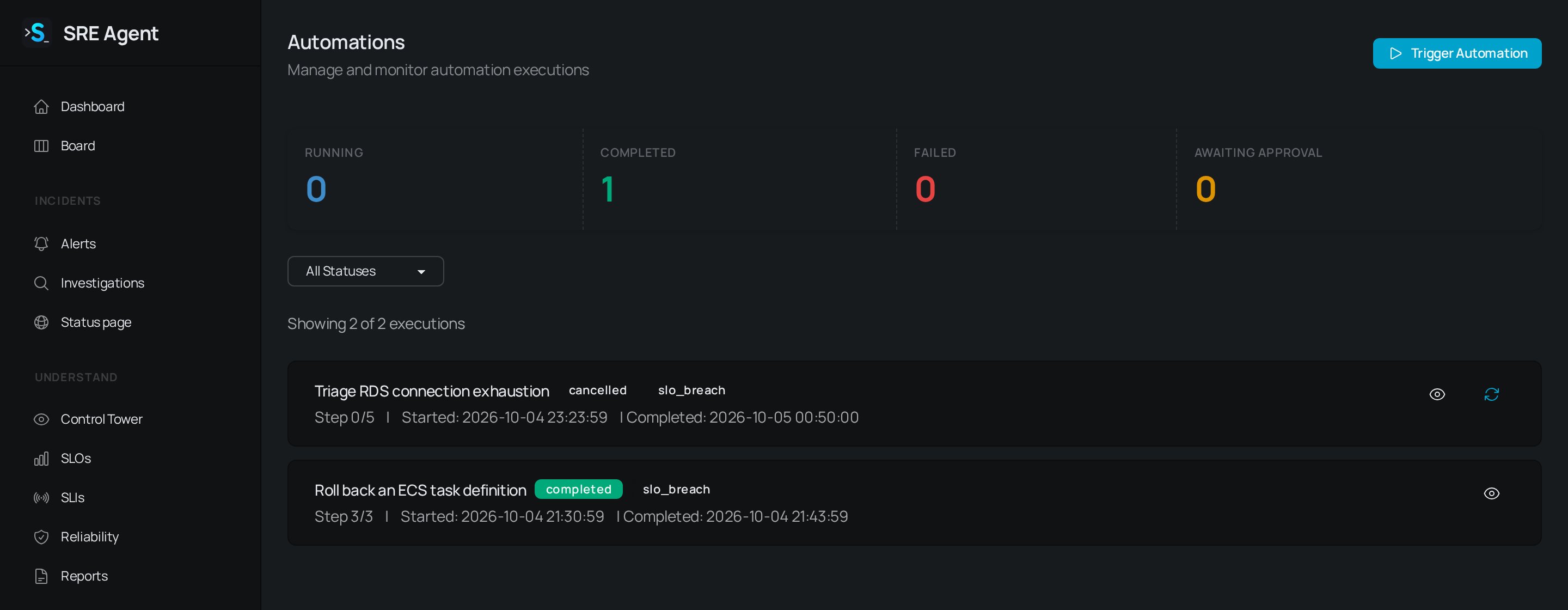
Go to **Automations** and click **Trigger Automation**. Choose an approved runbook (each shows its step count, risk and approval mode) and click **Execute**. Members and admins can trigger runs.
## Read the run history
**Automations** lists every run, whatever started it, with counts for **Running**, **Completed**, **Failed** and **Awaiting Approval**. Use the status filter to narrow it to **Pending**, **Awaiting Approval**, **Running**, **Completed**, **Failed**, **Rolled Back** or **Cancelled**. Each row shows the runbook, status, what triggered it, the current step out of the total, and start and finish times. A failed run shows the start of its error message.
Click a run to open it:
* **Triggered By**, **Progress**, **Started**, and **Approved by** with the time, once someone approves.
* **Writes dispatched**, the number of changes the run made.
* **Execution Steps**, a timeline with each step's status, duration, approver and the command it ran. The document icon opens the step's output, error and rollback output.
* **View Alert**, **View Investigation** and **View Runbook** links to what the run relates to.
A **Dry run** banner marks rehearsals. Read steps ran for real, nothing changed, and the run stopped at the first step that would have. Under **Would have dispatched**, you see exactly what that step would have sent.
If a runbook runs once per connector, each run is a lane, labelled with its connector and region. A failing region does not stop the others. **lanes** on a row shows all the lanes of one trigger, and **Other lanes of this run** links between them.
## Approve, reject and control a run
When a run waits for you, its status is **Awaiting Approval** and a notification posts to Slack whatever the runbook's notification level.
* **Approve** on the run starts it. You confirm first, because it acts on your infrastructure.
* On a step waiting for approval, **Approve** runs that step and **Reject** stops it.
* **Cancel** stops a pending, running or waiting run.
* **Rollback** runs each step's rollback action on a running or failed run.
* **Retry** starts a new run of a failed, rolled-back or cancelled one. A retry is refused if the runbook is no longer approved.
* **Resume** continues a failed or rolled-back run from the step that failed.
A step of type `input` shows **User Input Required** with the fields the runbook defined. Fill them in and click **Submit** to let the run continue.
If the same issue triggers a runbook again while a run is waiting for approval, the new trigger is not queued separately. The waiting run shows **+N repeats**, and a banner on it tells you the issue is still happening.
Members and admins can approve and control runs. Approving a runbook, which makes it eligible to
run, needs an organization admin. The runs themselves record who approved them.
## Pause automatic runs
Click **Pause** on an approved runbook (on the runbook page or the **Runbooks** list) to stop its scheduled and alert-triggered runs until you click **Resume**. Use it during maintenance, or while you investigate a runbook that is misbehaving.
If a runbook is set to **A person, once** and triggers at night, the approval request can expire
unanswered and that run does not happen. Pick **Nobody** for runbooks that must run unattended,
and keep their steps low risk.
## Related
* [Triage alerts](/guides/respond/alerts): the alerts that start runs.
* [Work incidents from Slack](/guides/respond/slack): approval requests post to Slack.
* [Manage people and roles](/guides/administer/organizations-and-roles): who can approve a runbook and a run.
This documentation is built and hosted on [Mintlify](https://mintlify.com), a developer documentation platform.
## Wire an alert to a runbook
Open the runbook with **Edit** and choose a **Trigger Type**: `alert_pattern` for alerts
matching the patterns on the runbook, `alert_severity` for any critical or high alert, or
`slo_breach` for SLO breach alerts. Use `scheduled` for a cron schedule.
Tick **Run automatically when a matching alert fires**. Without it, a matching alert does not
start a run. Click **Save Runbook**.
Under **Who approves**, pick how much a person is involved. **Nobody** runs unattended. **A
person, once** pauses before the first step. **A person at each risky step** pauses only at
high-risk steps and at writes over more than one item.
Click **Dry run** on the runbook and read the result, then click **Approve**. An unapproved
runbook never starts on an alert.
An SLO breach alert carries the SLO's name, the service its SLI is tagged with (`sli_service`) and whether it is a fast or a slow burn. A runbook with `slo_breach` as its trigger can target the service that is burning without naming it anywhere in the steps.
## Start a run by hand
Go to **Automations** and click **Trigger Automation**. Choose an approved runbook (each shows its step count, risk and approval mode) and click **Execute**. Members and admins can trigger runs.
## Read the run history
**Automations** lists every run, whatever started it, with counts for **Running**, **Completed**, **Failed** and **Awaiting Approval**. Use the status filter to narrow it to **Pending**, **Awaiting Approval**, **Running**, **Completed**, **Failed**, **Rolled Back** or **Cancelled**. Each row shows the runbook, status, what triggered it, the current step out of the total, and start and finish times. A failed run shows the start of its error message.
Click a run to open it:
* **Triggered By**, **Progress**, **Started**, and **Approved by** with the time, once someone approves.
* **Writes dispatched**, the number of changes the run made.
* **Execution Steps**, a timeline with each step's status, duration, approver and the command it ran. The document icon opens the step's output, error and rollback output.
* **View Alert**, **View Investigation** and **View Runbook** links to what the run relates to.
A **Dry run** banner marks rehearsals. Read steps ran for real, nothing changed, and the run stopped at the first step that would have. Under **Would have dispatched**, you see exactly what that step would have sent.
If a runbook runs once per connector, each run is a lane, labelled with its connector and region. A failing region does not stop the others. **lanes** on a row shows all the lanes of one trigger, and **Other lanes of this run** links between them.
## Approve, reject and control a run
When a run waits for you, its status is **Awaiting Approval** and a notification posts to Slack whatever the runbook's notification level.
* **Approve** on the run starts it. You confirm first, because it acts on your infrastructure.
* On a step waiting for approval, **Approve** runs that step and **Reject** stops it.
* **Cancel** stops a pending, running or waiting run.
* **Rollback** runs each step's rollback action on a running or failed run.
* **Retry** starts a new run of a failed, rolled-back or cancelled one. A retry is refused if the runbook is no longer approved.
* **Resume** continues a failed or rolled-back run from the step that failed.
A step of type `input` shows **User Input Required** with the fields the runbook defined. Fill them in and click **Submit** to let the run continue.
If the same issue triggers a runbook again while a run is waiting for approval, the new trigger is not queued separately. The waiting run shows **+N repeats**, and a banner on it tells you the issue is still happening.
Members and admins can approve and control runs. Approving a runbook, which makes it eligible to
run, needs an organization admin. The runs themselves record who approved them.
## Pause automatic runs
Click **Pause** on an approved runbook (on the runbook page or the **Runbooks** list) to stop its scheduled and alert-triggered runs until you click **Resume**. Use it during maintenance, or while you investigate a runbook that is misbehaving.
If a runbook is set to **A person, once** and triggers at night, the approval request can expire
unanswered and that run does not happen. Pick **Nobody** for runbooks that must run unattended,
and keep their steps low risk.
## Related
* [Triage alerts](/guides/respond/alerts): the alerts that start runs.
* [Work incidents from Slack](/guides/respond/slack): approval requests post to Slack.
* [Manage people and roles](/guides/administer/organizations-and-roles): who can approve a runbook and a run.
This documentation is built and hosted on [Mintlify](https://mintlify.com), a developer documentation platform.